
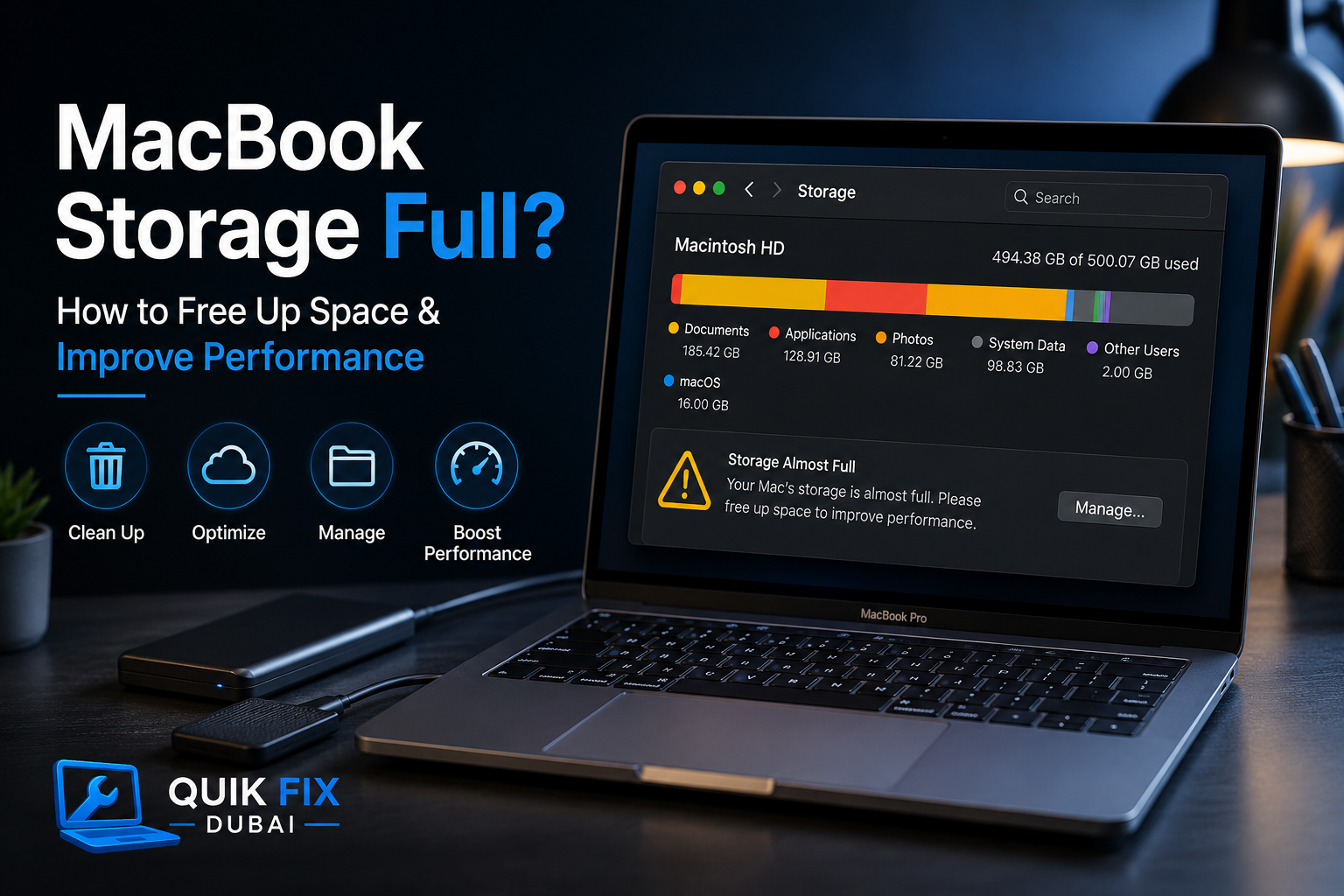
Does your MacBook show a MacBook storage full message? Are you finding it difficult to download files, update the macOS, or install apps because your storage space is limited?
A MacBook that lacks storage space may become problematic. When your startup disk is almost full, you can have difficulty updating software, saving files, downloading new content and apps, and performing other activities. In some cases, a lack of space can lead to poor performance of your computer.
Regardless of whether you use MacBook Air or Pro for business, studies, creative tasks, or your daily tasks, proper storage management is necessary.
The good thing about having a full storage is that it does not always mean replacing your MacBook or upgrading its hardware components. Deleting unnecessary files, app management, cleaning up downloaded files, and using the cloud storage are great methods to regain valuable disk space.
In this article, we will discuss why your MacBook runs out of storage space, how to check disk usage on Mac, and what can be done to free up space on your MacBook. We will also share information about when professional MacBook repairs in Dubai might be required.
Why Is Your MacBook Storage Full?
The storage capacity of your MacBook might run out over time due to installation of software programs, downloading files, storing photos, and creating documents.
Even if you clean up your MacBook often, there are still some applications or even system processes that use storage capacity behind the scenes.
Here are some common causes for which your MacBook storage is used up.
1. Big Photos and Video Files
Big photos and video files can take up lots of storage space, especially when you frequently record high-quality videos.
Creative individuals who use software like Final Cut Pro, Adobe Premiere Pro, or Photoshop can have big file sizes of their projects.
How to proceed:
- Clean up duplicate photos and unneeded video files.
- Backup older media files to another storage.
- Look into old projects of videos that you don’t need anymore.
- Think about iCloud Photo Library with optimized storage.
- Remember to always backup all your photos and videos.
2. Too Many Installed Applications
Applications occupy storage space even when they are not running.
With time, you will find yourself installing software to perform various tasks such as working, playing, editing, communicating, and others. There are also some applications that are capable of holding extra files and downloads.
What can you do:
- Check the list of installed applications.
- Find the ones you don’t use anymore.
- Properly uninstall applications that are not necessary.
- Get rid of old application installers found in the Downloads.
- Do not delete randomly application support folders since there might be some important information inside.
3. Too Much Stuff in the Downloads Folder
The Downloads folder is one of the most overlooked directories when it comes to freeing space on the MacBook.
It might include:
- Old PDF files.
- Duplicates of pictures.
- Software installers.
- ZIP files.
- Downloaded movies.
- Big documents or presentations.
What can you do:
- Launch the Finder.
- Select the Downloads directory from the sidebar.
- Change the view to the List.
- Sort all files by their size.
- Delete files that you don’t need anymore.
- Save those that are valuable somewhere else.
- Clear the Bin.
4. Too Much System Data
Do you see that the System Data takes an unusually big part of your MacBook memory?
System Data is a broad storage category including files like:
- Cache files for systems and applications.
- Log files.
- Temporary files.
- Supporting files for applications.
- Virtual memory files.
- And other system data.
The amount of space it takes varies depending on your MacBook usage.
It is very important to remember that the System Data is not one folder which you can just delete without risks.
What you can do about it:
- Restart your MacBook.
- Clear unnecessary application data with those applications.
- Delete files you know and don’t need anymore.
- Check if there are any big temporary or project files stored by applications.
- Update your macOS.
Don’t delete any system files manually or via Terminal command line if you don’t understand what you are doing.
5. Old iPhone and iPad Backups
Since you tend to frequently use your iPhone or iPad with your MacBook, you may end up having old device backups on your computer.
Old device backups take up significant disk space since many different versions of these backups can accumulate over time.
Actions you can take:
- Launch Finder.
- Connect your iPhone or iPad if necessary.
- Choose your device from Finder.
- Go to the General tab.
- Select Manage Backups.
- Review all available backups.
- Delete only old backups that you do not need anymore.
Keep at least one recent backup if you need to have device backups for recovering your iPhone or iPad.
6. Large Emails and Attachments
Emails and their attachments take up disk space, and so do messages sent using the application called Messages.
This usually happens if you receive large work-related documents, presentations, photos, and videos via email.
Actions you can take:
- Delete unnecessary email attachments.
- Delete unnecessary and junk emails.
- Review large messages in Messages.
- Save the necessary documents to the right place before deleting them.
7. Creative Projects and File Editing
Individuals using MacBook for photography, graphic design, video editing, and music creation tend to have large project files stored in their system.
For instance, video editing software will create original media files, exported media files, rendered files, and cache data of projects.
Actions you can take:
- Backup completed projects.
- Transfer old video files to an external SSD.
- Delete unnecessary exported files.
- Consider cache management in applications.
- Back up project files that are currently in use.
This is especially useful for professionals dealing with large media files.
How to Check MacBook Storage Usage
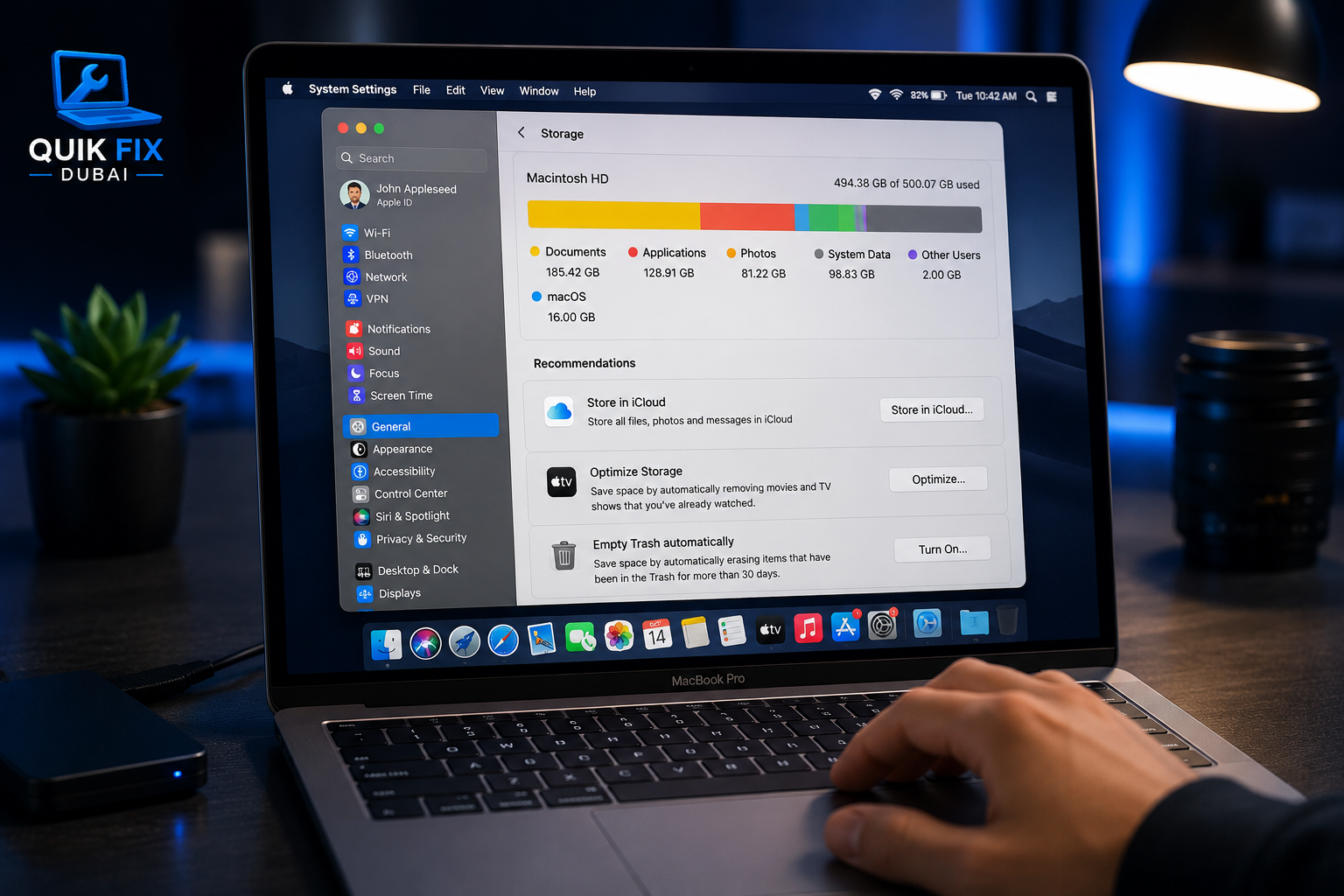
Before deletion of any files, one should be aware of the files occupying the most space.
MacOS has an in-built storage management feature that can be used to assess your storage use per category.
Here are the steps to follow:
- Go to the Apple menu on the upper left-hand side of the screen.
- Go to System Preferences.
- Choose General.
- Then click on Storage.
- Let the data on storage load.
- Now, check the categories appearing on your screen.
These categories include:
| Storage Category | What It Includes |
|---|---|
| Applications | Installed applications and related data |
| Documents | Documents, downloads, and other files |
| Photos | Your system photo library |
| iCloud Drive | Files stored in iCloud Drive |
| Messages | Messages and attachments |
| Email messages and attachments | |
| macOS | Operating system files |
| System Data | Caches, logs, temporary files, and other system resources |
| Trash | Deleted files waiting to be permanently removed |
You can select certain categories to review their contents and remove files you no longer need.
9 Effective Ways to Free Up MacBook Storage Space
Now that you know how much space is used on your MacBook, you can begin cleaning up unnecessary files and organizing them.
Here are 9 helpful tips to get started:
1. Delete Unnecessary Large Files
- It is best to find files that take up large space.
- Open Finder and navigate to your Documents and Downloads folders.
- Sort files according to size in those folders.
- Find outdated videos, unnecessary duplicate files, installer files and unused files.
- Delete only after making sure you have a backup if the file is important.
2. Remove Unnecessary Applications
The applications that are hardly used may occupy a lot of storage space.
How to remove applications from MacBook:
- First, open Finder.
- Click Applications.
- Find the application that you do not use anymore.
- Delete it into Bin or follow the uninstallation guidelines of the software.
- Empty the Bin once you are sure that you no longer need the file.
3. Empty the Bin
Deleting a file and sending it to the Bin will not immediately free up its storage space.
In order to free up the storage space occupied by deleted files:
- Open the Bin from the Dock.
- Check the contents of the Bin.
- Ensure that there is nothing important in it.
- Click Empty Bin.
- The files will then be deleted.
4. Move Large Files to an External SSD
If your MacBook has a lot of photos, videos, project files, or documents that you don’t use often, an external SSD could be very helpful.
It will be possible to organise the files by moving old files to an external drive.
Some advantages are:
- Increased storage space on the internal drive.
- A more organised large project.
- Easy access to archived files.
- Less necessity to delete important files.
- Always check that the moved files open properly before deleting the originals.
5. Utilize iCloud Storage
iCloud Drive might assist in minimizing the amount of local storage required for files that you may not require to download locally.
To activate storage optimization:
- Access System Preferences.
- Select your Apple ID.
- Select iCloud.
- Examine the settings of iCloud Drive.
- Activate desktop and document sync if necessary.
- Utilize Optimize Mac Storage when available.
Be mindful that iCloud storage capacity is independent of your MacBook’s actual storage space. Uploading files takes up your iCloud storage capacity too.
6. Delete Old Device Backups
Old backups of your iPhone and iPad take up significant amounts of storage space.
Check your backups using the device management feature in Finder and delete those which are no longer required.
7. Managing Photos and Videos
In case you have a large Photos library, you can periodically look at it and decide what to do with it.
You can:
- Delete unnecessary photos.
- Delete unnecessary videos.
- Check for duplicate photos.
- Export older photos to external storage.
- Use iCloud optimised photo storage.
Be sure not to delete photos that sync between several Apple devices because it might delete them from your iCloud Photos library and other devices.
8. Deleting Unnecessary Mail and Message Attachments
Unnecessary email attachments and media files sent via Messages may take up more storage than needed.
Check unnecessary email attachments, junk email and deleted messages.
You can use Mailbox menu in Apple Mail to delete junk mail and deleted messages.
9. Rebooting your MacBook and Checking Storage
Once you get rid of unnecessary files, reboot your MacBook and go to System Settings → General → Storage.
Let macOS update the information about available storage on your computer.
Now you will know how much space became free.
Does MacBook Storage Full Make Your MacBook Slow?
However, an almost full start-up disk may cause performance issues, although it might not be the sole issue that causes MacBook to perform poorly.
macOS utilizes the available disk space for caching and virtual memory, among other system operations.
Once available space is severely low, you may encounter issues such as:
- Delayed opening of applications.
- Trouble in downloading or installation of updates.
- Issues while saving documents.
- Slow transfer of files.
- Abnormal application behavior.
- Other potential causes of poor performance may include:
- Age of hardware
- Insufficient RAM for processing heavy tasks
- Background applications
- Software related problems.
Disk cleanup may help, but once your MacBook still performs poorly despite deleting unnecessary files, more troubleshooting is necessary.
When Should You Consider Professional MacBook Storage or Hardware Inspection?
Most storage issues can be solved by basic file management. In some instances, however, professional help might be required.
You might consider taking your MacBook to a technician in the following cases:
- The storage usage on your MacBook is unexpectedly high for unknown reasons.
- Your MacBook keeps on reporting errors related to the disk.
- You cannot access specific files or folders.
- Your MacBook frequently freezes when performing file operations.
- The internal SSD is not recognized properly.
- You have difficulties with startup and installation of the operating system.
- Storage issues persist despite removal of unneeded files.
- A technician can check for any possible software, file system, or hardware storage issues.
If the issue is related to the hardware (the internal SSD or the logic board), then deleting the files may not be able to solve the problem.
Why Choose QuikFix Dubai for MacBook Repair?
Your MacBook will become a constant source of interruption for your work if it constantly displays messages regarding low storage and shows signs of malfunctioning.
The main goal of QuikFix Dubai is to determine the true cause of MacBook problems before suggesting the customer to get their device fixed.
No matter whether the issue concerns slow performance, difficulty with starting up the MacBook, storage problems, or other hardware and software problems, correct diagnosis is one of the first steps that need to be made.
The key principles of MacBook repair at QuikFix Dubai include the following:
• MacBook Diagnostics – possible causes of storage and performance issues.
• Software Troubleshooting – possible reasons for macOS or application problems.
• SSD Inspection – storage hardware problems.
• Data Recovery Assistance – possible solutions for retrieving inaccessible data.
• Hardware Inspection – other component-related problems.
We make it our priority to find out which component is affected and save the unaffected ones from unnecessary replacement.
If you experience storage and performance problems with your MacBook, contact QuikFix Dubai to get information on MacBook repair in Dubai.
Need some help with your MacBook?
Contact QuikFix Dubai for information on MacBook repair services.
Lack of space on your MacBook can impact your daily work, be it downloading files and installing applications or storing crucial documents and finishing professional projects.
However, it is possible to free up some much-needed space in many cases without buying a new MacBook for yourself.
You may begin by checking storage usage, getting rid of any useless downloads, uninstalling applications that you do not use anymore, looking at previous backups, and moving big files to an external drive or iCloud.
However, if your MacBook continues giving you storage issues even though there is enough free space, you should have it checked.
If you need MacBook repairs in Dubai, feel free to contact QuikFix Dubai and let our technician check your MacBook for you.
If your MacBook continues showing storage errors, runs slowly despite freeing up space, or has SSD-related problems, professional diagnosis can help identify the underlying issue and restore performance.
Yes. Low storage can cause slow performance, app crashes, delayed startup, and problems installing macOS updates. Keeping sufficient free storage helps your MacBook run smoothly.
Yes. If your MacBook has an SSD or storage-related hardware issue, a technician can diagnose the problem and recommend suitable repair or data recovery options. Quik Fix Dubai provides MacBook repair services in Dubai.
Click the Apple menu, open System Settings, select General and then Storage. You can review how much space is used by applications, documents, photos and system data.
Yes. When storage space becomes limited, your MacBook may experience slower performance, delayed app launches and difficulties installing macOS updates.
Delete unnecessary files, uninstall unused applications, remove duplicate photos and empty the Bin. You can also move large files to an external drive or iCloud.
Your MacBook may still contain cached files, system data, old downloads, application data and backups. Empty the Bin and review your storage settings to identify what is taking up space.
Leave A Comment